
After an organization is approved and names its authorized signer, one private link is sent to review and sign the initial agreements. The signer does not need an Adrasis account.
Signature type: This flow records a simple electronic signature. It is not a qualified, advanced, certificate-backed, biometric, or identity-verification service. The legal effect of a signature depends on the agreement and jurisdiction; consult your legal counsel when needed.
Agreements included
One signing request always contains these three agreements in the application language:
| Agreement | What it covers |
|---|---|
| Terms of Service | The rules for using the platform |
| Service Agreement | The services and responsibilities between the organization and Adrasis |
| Hospitality Pre-Agreement | The setup terms that apply before hospitality operations begin |
The signer reviews and accepts each agreement separately, then draws one signature that applies to all three.
Signing flow
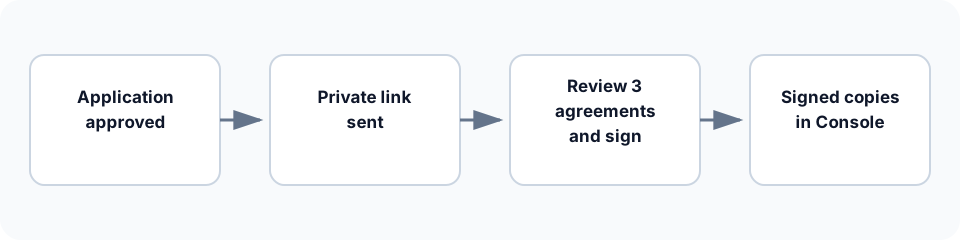
- The organization administrator enters the authorized signer's name, and optionally their title, on the Setup page and sends the agreements. A platform administrator can also name the signer while approving the application.
- The private signing link is emailed to the organization administrator's address.
- The signer reviews the three agreements in the browser or opens their PDF copies.
- The signer accepts each agreement, confirms their authority, draws a signature, and submits.
- After processing completes, the application shows Completed and the organization administrator can download all three signed PDFs.
Signing completion does not control whether the organization exists. The organization can continue its setup while the signature status remains visible as a separate step.
What the signer should expect
- The link opens a responsive page in English or Turkish and does not require sign-in.
- The signer's name, title, and masked email appear before acceptance.
- Every agreement remains readable as page content independently of its PDF copy.
- The signer can decline the full request instead of signing it.
- The page shows when the link expires.
- If drawing a signature is not accessible, the signer should contact support for the approved assisted-signing process.
Keep the invitation private. Possession of the link and the signer's explicit authority confirmation are the checks used by this flow; no separate identity check is performed.
Track and recover a request
The application shows the current signing status and only the actions available for that status:
| Status | Meaning | Typical next action |
|---|---|---|
| Queued | The invitation is being prepared | Wait for processing |
| Waiting for signature | The current private link can be used | Resend if the email was missed |
| Preparing signed copies | The signature was submitted | Wait for completion |
| Completed | All three signed PDFs are ready | Download the documents |
| Declined | The signer declined the request | A platform administrator may start a new request |
| Cancelled | A platform administrator cancelled the request | A platform administrator may start a new request |
| Expired | The private link can no longer be used | Resend to create a replacement request |
| Needs attention | Processing did not complete | Use the available retry or recovery action |
A resend issues a replacement private link and the previous link can no longer be used. Resends are limited. Platform administrators can also cancel a pending request or rotate its link; an existing raw link is never displayed later.
Documents and recorded evidence
For each completed request, Adrasis keeps the exact agreement versions, their integrity hashes, server-recorded acceptance times, the submitted signature image, and technical request events. Organization administrators can retrieve the three signed PDFs from the setup page. Signed PDFs are not attached to email and are not exposed through a public download link.
These records support operational and legal review, but their availability is not a legal conclusion about enforceability. Access and retention follow the applicable organization and legal policies.
Where to next
- See this step in the wider journey → Setup flow
- Understand the contract records around setup → Contracts
- Review recorded operational activity → Activity log