
Adrasis AI Operator shows a preview before changing a record and applies the change only with your approval. For example, a weekend discount for Hotel Sunrise stays a proposal until you approve it.
This page explains which actions require approval and how to approve them in Console or a messaging channel.
Requests for information skip preview. Listing properties, checking a rate cell, summarising bookings, anything that does not change a record, returns immediately. Confirm-before-apply applies to changes.
How the loop runs
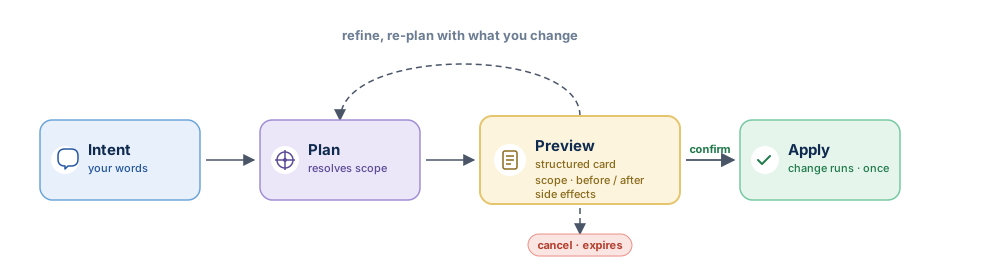
- Intent, what you ask the AI Operator to do, in your own words.
- Plan, the AI Operator works out which operation matches your intent and what the inputs would be.
- Preview, a structured summary of exactly what would change, before anything moves.
- Confirm, your explicit approval. If you do nothing, nothing happens.
- Apply, the change runs with the inputs you saw in the preview. No re-interpretation between approval and execution.
If the preview does not match what you meant, you refine ("only weekends") or cancel. The AI Operator re-plans and shows a new preview.
What needs confirmation
Every change goes through the same approval step, whatever its size. Reads never need one.
| You ask the AI Operator to… | What you do |
|---|---|
| Look something up, list, search, view, summarise | Nothing. The AI Operator answers right away. |
| Change something, create, update or delete a record, edit rate or inventory cells, run a bulk edit, change payment configuration or contract status | Approve the preview. In the Console, use Confirm for one change or Approve all for changes prepared together. You can also type confirm under the conditions below. On a messaging channel, reply with the approve option from the message. |
For a bulk or wide-range change, the preview shows the full impact in plain numbers before you approve.
Every change, small or critical, comes with a preview you can read before approving. You can review the proposed changes before they take effect.
What the preview shows
The preview lists what will change:
- The operation the AI Operator would run, Apply promotion, Update rate plan, Stop-sale.
- What it touches, the names and identifiers of every property, room, rate plan or contract that would change.
- Before and after, for value changes, the current value and the proposed value side by side.
- The scope, date ranges, audience filters, channel bindings.
- Side effects, anything else that would happen as a consequence ("this stop-sale will pause 3 outbound channel pushes").
If the preview does not match what you meant, refine or cancel. The change is applied only if you approve the preview as-is.
How you confirm
In the Console, review the preview and click Confirm. When one request prepares several changes together, the card lists each change and offers Approve all or Reject all. For example, setting the room count to 10 for Hotel Sunrise's Standard and Deluxe rooms shows two rows on one card.
You can also type confirm or approve in the same conversation when one change is waiting, or when all waiting changes were prepared together in one response. Every preview must be readable and you must have permission to approve. Written approval applies the same changes as the card.
Each row reports its own result. If one change fails, successful changes remain applied. Review the failed rows before asking for a correction. Reopening the conversation shows the stored outcomes, and an already decided change is not applied again.
Example: after reviewing a 15% weekend discount for Hotel Sunrise, type confirm to approve that waiting change. Yes alone is not an approval command, and approve only Saturdays is a request to revise the change.
Changes from separate requests waiting? Use their cards. A typed approval does not choose between requests. If a preview cannot be read, the changes are shown on individual cards; resolve the unreadable preview before approving it.
On a messaging channel, the preview arrives as a numbered message and you reply with the approve option. Your reply answers the last message the AI Operator sent you, or the one you reply to directly, and runs only the operation that message describes.
- Confirm for one change, Approve all for the grouped changes, or confirm / approve when the Console conversation meets the conditions above.
- The approve option (1 or approve) on a messaging channel.
- "only Saturdays" / "skip Hotel Sea Breeze" / "add Hotel Marina too", the AI Operator re-plans and re-presents.
- "no" / "stop" / closing the preview, the plan is dropped.
Every approval records who approved and when, and the change runs with the approver's own permissions.
Use the approval options provided by each connected messaging channel.
How long an operation waits for you
A staged operation waits up to 24 hours for your approval. An organization admin can change this wait anywhere from 5 minutes to 7 days under AI Operator > Settings > Approval wait. After that it expires and you have to ask again. Within a chat session, the AI Operator re-prompts sooner, about five minutes, so the flow does not stall on you.
Practical case: you stage "stop-sale Hotel Sunrise rooms 12 and 14 from 1 to 8 June" before lunch, you eat, you come back at 1:30 pm, the preview is still there waiting. You stage the same thing on a Friday and forget over the weekend; by Monday morning it has expired and you re-ask.
You will not get charged twice
The same approval may arrive again because of a network retry or a double-click on the approval button. The AI Operator does not apply the operation again; it shows the previous result.
Approving a relative price change
For a base-price adjustment, the card shows Decrease or Increase, the signed amount or percentage, currency and target scope. A 10% decrease uses the current base prices when you approve: if a price moves from 100 EUR to 120 EUR while the request is pending, approval writes 108 EUR. Reject a proposal whose direction or target differs from your request.
“Apply a 10% discount until the end of May” prepares a campaign that preserves the stored base prices. “+25% extra discount” remains a discount. To edit daily prices, ask explicitly to change the stored base prices. The page you have open and the channel you use do not change this distinction.
A reduction that would make a positive base price zero or negative is rejected for the entire operation. The error identifies the first affected room, plan and date. Set to zero remains available with a warning that the room cannot be sold. Use a promotion for a free night.