
A rate plan is a named pricing arrangement that travellers book against, the answer to "at what price, with what conditions". A property can sell against many rate plans at the same time, refundable, non-refundable, member-only, package, each with its own base rate, currency, meal plan and rules.
One plan, several rooms; one room, several plans. Best Available Rate, Non-Refundable Europe, Member Saver and a Half-board upgrade are four rate plans for four audiences. Each plan is shared by the rooms it is sold in, so Deluxe Sea View under Member Saver and Deluxe Sea View under Best Available Rate are two separate offers. The platform tracks them independently and sells them in parallel.
What a rate plan defines
| Element | What it says |
|---|---|
| Name | The label travellers and operators see (Best Available Rate, Member Saver, Non-Refundable Europe). |
| Base rate | The starting price per night for the room's included guests; each other adult count has its own saved price. |
| Currency | The currency the rate is denominated in. Multi-currency setups handle the contract / settlement / display split automatically. |
| Meal plan | What is included with the stay (room only, breakfast, half-board, full-board, all-inclusive). |
| Audience | Who can see and book it (public, members only, B2B partners, specific markets). |
| Cancellation policy | When and how the booking can be cancelled, refunded, or modified. |
| Channel exposure | Which outbound channels the rate plan is published to. |
A rate plan lives on a property, is sold in the rooms you link to it, and is calendared per date. The next two sections explain how rooms share a plan and how one room can differ.
One plan, several rooms
A rate plan is one set of sale conditions that several rooms share. Hotel Sunrise sells seven rooms. Room only, refundable is one rate plan linked to all seven. Non-refundable is a derived plan, 10% less than Room only, refundable, linked to the same seven rooms. That is 2 rate plans, not 14. Change the cancellation deadline once on Room only, refundable and it changes in every room; Non-refundable follows its price.
You choose the rooms when you create or edit a rate plan. The room list starts with all active rooms, and the rate plan list shows in how many of the property's rooms each plan is sold, for example 7/7. A derived plan can be sold only in rooms its parent plan is sold in.
The link between a room and a rate plan decides three things:
| Room is linked to the plan | Room is not linked | |
|---|---|---|
| Sale | The room is sold under the plan on every channel. | The room is not sold under the plan, even when prices are still stored. |
| Prices and rules | You can enter prices, restrictions and child prices for the room under the plan. | Console refuses them and names the room and the plan. |
| Rates screen | The room lists the plan. | The room lists the plan only while prices are stored for it, read-only and marked Not linked. |
Removing a room from a plan keeps its stored prices, so linking the room again sells them again. The room's exceptions for that plan end with the link, and the plans derived from it leave the room too.
A room you add later joins only the plans that are sold in every other active room. A plan you sold in three rooms on purpose stays in three rooms. A plan that a channel manager supplies keeps the rooms the channel sells it in, and you change those rooms only on the Connectivity page.
Exceptions for one room
When one room differs, the plan stays shared and that room carries an exception. You write the rule once on the plan and add an exception only for the room that differs.
Hotel Sunrise lets children from 7 to 12 stay free in every room except the Double Room, where a child pays 25% of the nightly price. The plan Room only, refundable holds the free rule, and the Double Room holds one exception: child 7 to 12, 25%.
| What differs in one room | How the exception works |
|---|---|
| Stop-sale and stay rules (minimum stay, closed to arrival, advance purchase) | An exception can only tighten. A stop-sale for the Double Room on 10 October closes that room under that plan and leaves the other six rooms on sale. A smaller minimum stay on an exception does not lower the plan's minimum. To close every room but one, put exceptions on the other rooms. |
| Child prices | The room's rule replaces the plan's rule for that age band and those dates. The order is the room, then the plan, then the property default. A room without an exception uses the plan's rule. |
| Extra adult charge and ratios | The same order: the room, then the plan, then the property default. |
An exception belongs to one room under one plan. The Double Room's exception on Room only, refundable does not change the Double Room under another plan, and it does not change any other room.
A channel manager that sends a stop-sale, a minimum stay, a child price or an extra-adult amount for one room and one rate creates exactly this exception, so the other rooms of the plan are never closed or repriced by that message.
A family of two adults and a 9-year-old stays 11 to 13 October.
| Room | Room only, refundable | Non-refundable (10% less) |
|---|---|---|
| Double Room, child exception 25% | 187.50 EUR | 168.75 EUR |
| King Room, no exception, child free | 190.00 EUR | 171.00 EUR |
The Console calculator, the partner API and your online shop show the same totals.
You see and set exceptions here:
- Rates screen. A room's row for a plan is marked Restriction: this room only or Child price: this room only when the room has an exception. A cell edit on that row changes that room only; the Apply to plan control in the header of the plan's row changes every room of the plan.
- Adult and child prices drawer of a rate plan. In its Child prices and Price by number of adults sections, pick the room under Applies to before you add a rule; Room exceptions of this plan lists the rooms that have a rule of their own.
- Restrictions page. The rate plan tab takes an optional room.
- Adrasis AI Operator. It accepts a room together with a rate plan, and shows the room in the preview you confirm.
Choose the plan currency
For a property managed through direct contracts or manual prices, select the currency when creating an independent rate plan. Leave the selection at the property default to inherit that currency. A clone keeps its source plan's currency, price entry and commercial model; create another independent plan to author prices in another currency.
Hotel Sunrise uses EUR as its property default. Its Europe contract plan has a price of EUR 100; its separate domestic contract plan has a price of TRY 3,200. Enter each amount in its plan's currency. The calendar does not convert one authored price into the other.
Channel-managed prices use one agreed currency. If a channel manager supplies Hotel Sunrise's prices in TRY, configure the property currency as TRY. Every incoming plan uses that currency, and all manual price inputs remain read-only while the source connection exists, including when transport is paused.
Price-following and floor-following plans must share a currency with their parent. Fixed derivation differences use that same currency. A foreign-currency plan needs its own applicable fixed child, extra adult and floor values; a fixed property default cannot be used as though it had another denomination.
Many rate plans on the same room
The same room typically sells against several rate plans simultaneously. A Deluxe Sea View might be available as:
- Best Available Rate, the public refundable rate, EUR 180/night with breakfast.
- Non-Refundable Europe, 10% off for European travellers, locked in at booking.
- Member Saver, 15% off for logged-in members, refundable.
- Half-board upgrade, Best Available Rate + half-board, EUR 220/night.
A traveller (or a partner channel) sees only the rate plans they qualify for. A member sees both the public rates and their member rate; a European traveller sees the non-refundable; a B2B partner sees a B2B-only rate plan that does not surface to retail.
Base rate and selling price
The base rate starts the nightly calculation. The selling price is the result after applicable promotions, distribution markup and the optional floor. The saved prices of the adult counts, or the parent plan's for a derived plan, supply the starting amount for the selected room and guests.
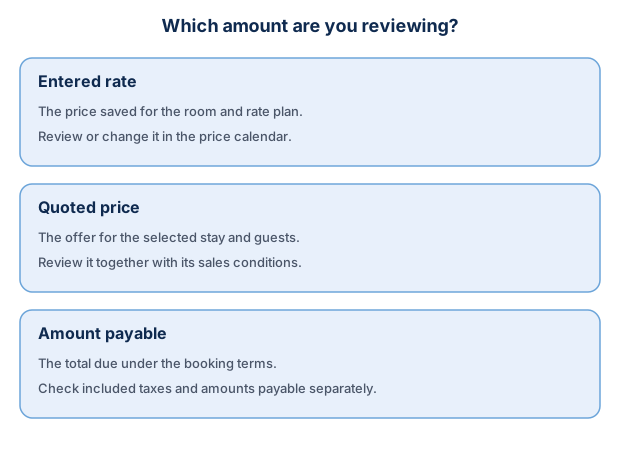
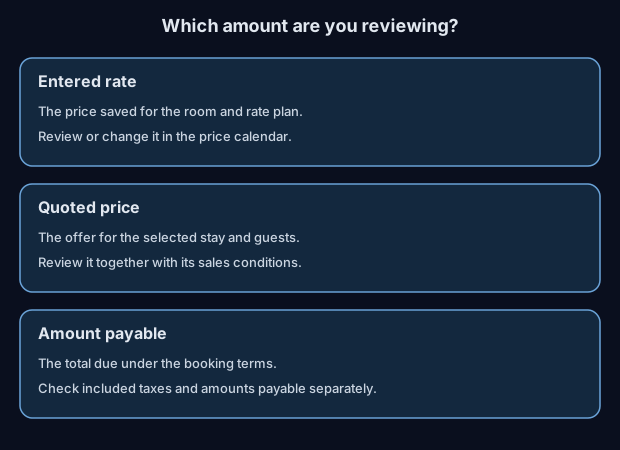
The entered price can differ from the quote for a particular stay. Review the selected guests, dates and sales terms. An optional floor prevents a selling price below the applicable minimum.
A commissionable plan keeps its supplier-controlled selling price; distribution markup does not add its commission to the guest’s price. Currency conversion, taxes and the sub-agency’s own retail markup retain their separate rules. See Pricing engine.
Each property has a commercial model its rate plans open with: Net rate, where the property gives net prices and your markup is added on top, or Commissionable, where the property gives the price the guest sees and pays your commission out of it at the rate you set. You choose it when you add the property, where Net rate is selected until you pick the other, and change it later on the property's Settings page under Commercial model of new rate plans; a property always has one. Every new plan starts with it, the plans the property opens with included, and each plan can take other terms on its own page. For example, Deniz Hotel pays a 15% commission, so its first plans open as commissionable at 15%.
Changing the setting moves no existing plan. It applies to the next plan you create. A plan's prices are read under that plan's own model, so change a plan's model only together with its prices.
Derived rate plans (parent → child)
Sometimes you do not want to set a base rate at all, you want a rate plan whose price follows another rate plan. A common pattern:
- Best Available Rate, refundable, your master rate plan; you set the base.
- Non-Refundable, same rooms, no refund window, 10% off the master rate.
- Member Saver, same rooms, 15% off the master rate, refundable.
The two derived rate plans never carry their own base rate. They follow the master, with an offset. Change the master and the derived plans update automatically.
A derived plan is a variant of one sale condition: the same rooms with a different cancellation rule or price. It is sold only in rooms its parent plan is sold in. A difference between rooms is not a variant; give that room an exception (see Exceptions for one room).
What can be inherited
A derived rate plan can follow its parent on any combination of these aspects:
| Aspect | What it means |
|---|---|
| Price | The derived plan stores no prices. Each night starts from the parent's stored prices for that room, every occupancy you entered and not only the base, moved by the offset (percentage or fixed amount). The parent's child prices and extra-adult amounts, exceptions included, then apply to that price: a child price set as a percentage follows the lower price, a fixed child price is not discounted. |
| Restrictions | Minimum and maximum stay, closed to arrival and departure, advance purchase and weekday stay patterns. Room by room, the derived plan uses the parent's rules for that room, including that room's exceptions. |
| Cancellation policy | The derived plan uses the parent's policy. |
| Status (open / closed) | The derived plan opens and closes with the parent, room by room: a parent closed in the Double Room only closes the derived plan in the Double Room only. Modes: never, when-open-only, when-closed-only, always. |
| Floor price | The derived plan inherits the parent’s floor. |
You pick which aspects to inherit per derived plan. A typical Non-Refundable derived plan follows price and restrictions but carries its own cancellation policy. A typical Member Saver derived plan follows everything except price (its own discount math).
What is a floor price? Some contracts impose a floor, a price below which you cannot sell. It is usually for rate parity (you cannot show the same room cheaper on another channel) or brand protection. If the calculated selling price falls below the floor, the engine raises it to the floor. For details see Pricing engine → floor price.
Offset, percentage or fixed
A derived plan's price relation to its parent is one of:
- Percentage, parent − 10% or parent + 5%. Common for member rates and risk-priced non-refundable rates.
- Fixed amount, parent − EUR 20 per night. Common for promotional bundles or seasonal adjustments.
Each derived plan uses one mechanism, not both, on a given relation.
Chains
A derived rate plan can itself be a parent of another derived rate plan, Best Available Rate → Non-Refundable → Non-Refundable Mobile. Derivation chains can be up to 5 levels deep; cycles (a plan indirectly pointing back to itself) are rejected.
Why this is useful
Derived rate plans let you maintain pricing rationally. You change the base once; all the variants follow.
A concrete example: remember Deluxe Sea View at EUR 180? Raise the Best Available Rate from EUR 180 to EUR 200 for early summer and Non-Refundable Europe automatically becomes EUR 180 (200 − 10%), Member Saver becomes EUR 170 (200 − 15%). You do not have to update three plans by hand.
When you add a new market or a new audience, you derive a new rate plan from the existing master. The math stays explainable, every booking shows the chain that produced its rate.
Setting rates across dates
Select the rate-plan scope before entering an amount:
| Source and scope | Manual price entry |
|---|---|
| Channel-managed property, any selection | Read-only. Correct prices at the supplying channel manager. |
| Static property, All plans | Edit property-currency plans. Other-currency rows remain visible and read-only. General bulk scope includes only the eligible plans. |
| Static property, one explicitly selected plan | Enter prices in that plan's currency across its selected rooms and dates. |
The same selection rule applies to percentage changes and undo. Changing the plan selection clears pending price inputs. To edit Hotel Sunrise's TRY plan, select that plan individually first.
Manual prices are saved at the selected currency's decimal precision. For example, 180.125 EUR is saved as 180.13 EUR; JPY prices use whole yen. A fixed or percentage change is rounded after it is calculated. Review the preview before applying it.
Under each room the calendar lists the rate plans linked to that room. The cells of a derived plan show its computed price and are read-only: change the parent's price instead. A price written for a derived plan in a bulk change or through the AI Operator is refused with a message that says to change the parent's price, and the other items of the request still land.
The same goes for the child prices and the prices by number of adults of a plan that follows its parent's price, which the Adult and child prices drawer shows read-only, and for the stay rules of a plan that follows its parent's restrictions, whose rows on the Status and Min Stay layers are read-only.
A plan that still holds prices for a room it is no longer linked to appears read-only and marked not linked.
The platform's rate calendar lets you:
- Open a date range for a rate plan and a room, drag-select May 1 to October 31.
- Apply a base rate in one move, EUR 180/night for the full range.
- Vary by day of week, EUR 180 weekdays, EUR 220 weekends.
- Override specific dates, June 15 is a high-demand event date, EUR 280 just for that night.
- Bulk-edit with Adrasis AI Operator, "Apply weekend pricing of EUR 220 to Hotel Sunrise's Best Available Rate for all weekends in May."
Every plan saves a price for each adult count, from 1 to 20 adults per room, and its price entry decides what you type: the room price, the price per person or the price of one count (see Price entry). A room that sets its own Max Adults refuses a price for more adults than it holds: a room for 4 adults takes prices for 1 to 4 adults.
Every change goes through preview before you apply it. See Cell history for what gets recorded.
Set different room prices together
Choose Set Rate in Bulk Operations to enter prices. The same panel offers opening or closing sales, inventory and minimum stay; your choice also changes what the yearly calendar shows.
In the yearly view, choose rooms in Bulk Operations. The room currently shown starts selected. The calendar's room tabs let you review the selected rooms; use the panel's checkboxes to change which rooms the operation affects.
Select the dates and rate plans, then enter a price for each room and plan under Price by room. For example, set Hotel Sunrise's Standard room to 180 EUR and Deluxe room to 220 EUR for May weekends under the same plan. If you select several plans, each room has a separate price field for each eligible plan.
Use Copy the first price to all when every selected row needs the same price. An empty price field leaves that room and plan unchanged and excludes it from the affected-cell count. Review every displayed amount before applying, including when you add another room to your selection.
The calendar outlines the affected dates and shows the proposed price for the room and plan being viewed. These prices are saved only when you apply the operation. Before applying, check the selected rooms, dates, prices, currency and guest count.
What you type follows each plan's price entry: the room price, the price per person, or the price of one adult count. The panel writes it for each room's included occupancy; to price another guest count, change the Adults / Children filter above the panel. Set the price replaces the saved price, Add an amount and Change by a percent start from it, and the result is rounded to the currency's minor unit. Fill the other adult counts from the ratios is on by default for Room price and ratios and Per person plans and offered for Per occupancy plans. The Length of stay field writes a price by length of stay instead of the nightly price: Every stay, N nights or more or N to M nights. Before you apply, the panel shows what the first night writes. If no selected row can be written, Apply stays unavailable.
Apply Changes writes the whole selection or nothing. If one cell is refused, no cell of the selection is saved and Console says the bulk update failed. While a large selection is written, the calendar shows Applying changes…, also to a colleague who opens the property's calendar at that time.
Price entry, how you type a price
Every rate plan saves one nightly price for each adult count, and that saved price is what a guest pays. Its price entry decides what you type for a room. You choose it on the rate plan form, under Price entry.
| Price entry | What you type | What is saved |
|---|---|---|
| Room price and ratios | One room price per room and night, for the room's included guests (usually 2 adults). | That price, and a price for each other adult count that has a ratio. |
| Per person | The price per person at the included occupancy. | The room price (your price times the included occupancy) and a price for each other adult count that has a ratio. |
| Per occupancy | A price for each adult count. | The prices you type; the other counts can be filled from the ratios. |
Hotel Sunrise's Double Room, 200 EUR for 2 adults, ratio 75% for one adult. On Room price and ratios you type 200 EUR and the plan saves 150 EUR for one adult and 200 EUR for two. On Per occupancy you type 170 EUR for one adult and 200 EUR for two; a third adult, with no price for 3 and an extra adult charge of 50 EUR, pays 250 EUR in total.
Children use child age rules when they need a separate price. A saved price for the complete adult-and-child party already covers those priced children; their rules are not added again. The plan can also count children as occupants. See Price entry for these cases, the rule for an adult count without a price and prices by length of stay. A party without the required price or rule is not sold; the plan form lists such parties.
A property-wide default for new plans
If a property prices everything the same way (an apartment operator entering every adult count by hand, for example), set the price entry of new rate plans once on the property's Settings page. Every rate plan created afterwards without an explicit choice starts with that default; with no default a new plan is per occupancy.
The default applies at creation only. Changing it later affects the next rate plan you create, never existing plans, and never live prices.
Changing the price entry of a plan
Choose another Price entry on the plan form and save. The change does not rewrite any saved price; it changes what you type from then on. There is no conversion step.
Included occupancy of a room
Every room has an included occupancy: the number of adults its room price covers. When you leave it empty it is 2, or the room's Max Adults when that is lower. Hotel Sunrise's Single Economy Room holds one adult, so its room price covers one adult: one adult pays the EUR 50 you entered, with no occupancy adjustment, and a child price set as a percentage takes its percentage of that EUR 50. Set it on the room when the room price covers another count, for example 3 for a family room priced for three adults. Changing it moves no saved price: a price you type from then on is written to the new count.
Ratios, filling the other party sizes
A ratio is what an adult count pays as a share of the room price. When you type a price at the included occupancy, the Console fills every other adult count that has a ratio, shows the filled prices as unsaved values and lets you change them before you save. A ratio is one of:
- a percentage of the room price (75% for single use, 125% for three adults),
- a fixed amount added to or taken from the room price (minus EUR 40, plus EUR 60); a discount never pushes a night below zero,
- the count's own price (EUR 230 for three adults).
A ratio never changes a sale or a saved price. A count without a ratio gets no price when you type one; it sells at the next higher count's price, with the extra adult charge if it is above the highest priced count, or not at all. The charge is the value you enter in the Each extra adult row (a percentage of the room price or a fixed amount) and is added when the party is sold. With a room price of 100, 3 adults saved at 125 and 4 adults at 150, and an extra adult charge of 20%, 5 adults pay 170. A room sells only the adult counts its own Max Adults allows.
Ratios are set once as a property-wide default every rate plan inherits, in the Price by number of adults section under Inventory & pricing → Adult and child prices. They can be set on an individual rate plan in the ratio drawer or the Adult and child prices drawer of the Rates screen, set for one room of a plan (see Exceptions for one room), or narrowed to a date range. To rewrite prices that are already saved, use Apply to existing prices on the Rates screen after you save the ratios. The suggested values the forms show are only suggestions: nothing is written until you save it.
This is the adult side of the price. Children not already covered by the party price follow the guest-category rules below. A child older than the property’s last child age band counts as an adult here too.
Payment method
Each rate plan says how a stay on it is paid for: pay at property, invoice, prepaid, deposit plus balance or virtual card. A plan without its own choice uses the property's default payment method, set once under Policies → Payment Terms. That page also lists every rate plan with the method it ends up with, and each row opens the plan's form, where the plan's own method is chosen. Hotel Sunrise's default is Pay at property, so its Best Available Rate follows it. Its Non-Refundable Saver is set to Prepaid on the plan itself.
API partners can sell every plan. A partner collects from its own guest, and every booking it makes is invoiced to its account whatever the plan's payment method, then paid through its statement.
On a plan paid at the property, turn on Card guarantee to ask the guest for a card that guarantees the booking. Nothing is charged when the card is given; only the late cancellation or no-show fee of the plan's cancellation terms is charged to it. See Card guarantee.
Promotions for a new plan
A promotion applies only to the rate plans it names. When you create a rate plan, its Promotions tab lists the property's active promotions, none of them ticked. Tick the ones the new plan joins: each applies to it on the same rooms and channels as on its other plans. Hotel Sunrise opens a Weekend Escape plan in May and ticks its Early Summer promotion, so the 15% discount reaches the new plan from the first day.
Rate plans and channel exposure
You decide per channel which rate plans go out. When you create a new rate plan, exposure starts from one of the defaults; you can change it manually whenever you need to.
The defaults:
- Direct-only, internal pricing tools, staff bookings, demos. Never published. Practical use: test a new package on your own site first, before exposing it to OTAs and metasearch.
- Public retail, public rate plans go to public channels (online travel agencies, hotel comparison engines).
- B2B-only, partner rates that go to B2B channels but not to consumer-facing ones.
- Channel-specific, a promotion you only want a metasearch engine to see, or a rate plan you only want a specific B2B partner to receive.
Per-channel exposure is the same overlay used for everything else, see Stop-sale & restrictions.
Cancellation and modification policies
Each rate plan names the cancellation policy sold with it. A policy can charge different amounts at different times. The guest reviews the applicable dates and amounts before booking.
When you choose the policy on the rate plan form, a line under it says what the policy does, for example Free cancellation until 1 day before arrival, then the fee is the first night. A rate plan without a policy sells as non-refundable.
| Tier shape | Example |
|---|---|
| No charge before a deadline | Cancel before 14 October at 00:00, property time, without a charge. |
| Percentage penalty | 50% of the stay total from the stated deadline. |
| First-night penalty | The actual price of the first night, even if later nights have different prices. |
| Fixed amount | A 50 EUR cancellation charge from the stated deadline. |
| Non-refundable | The full booked total is due if cancelled from the booking instant. |
Before-arrival deadlines count back from midnight on the arrival date in the property's local time. They do not count back from the property's afternoon check-in time. For arrival on 15 October, a one-day deadline is 14 October at 00:00. Rules can also count from booking or confirmation; read the resulting date and time shown with the offer.
For example, a non-refundable 500 EUR stay booked on 12 October for arrival on 20 October has a 500 EUR cancellation charge from booking. It does not have a free-cancellation period until the day before arrival. A cancellation charge states what is owed; it does not prove that payment has already been collected.
Existing bookings keep their agreed terms. Changing a property's policy does not rewrite a booking's saved cancellation amounts and dates. Open the booking's cancellation quote to review its charge and expected refund.
Date-range exceptions
Use date-range exceptions when a holiday or event needs different terms. An exception replaces the standard cancellation rules for its applicable stay dates:
- Standard policy: free cancellation until one day before the arrival date, at midnight in the property's local time.
- Exception (22 December to 5 January): non-refundable from booking.
The exception is applied automatically based on the stay date; outside the exception range, the standard policy applies. You do not have to maintain two separate rate plans for peak vs. off-peak.
The property can reuse a cancellation policy across rate plans. A guest books the selected offer's terms. A non-refundable promotion has its own selected policy.
Names in other languages
Guests and partners read a rate plan's name and its cancellation policy's name in their own language. Open the rate plan or the cancellation policy and find Names in other languages: each guest language shows its name. A language left empty is translated automatically from the name above and marked Automatic. To use your own wording, type it, or choose Translate from the name above and edit the result. A name you save there is never overwritten. Example: the plan Erken Rezervasyon reads Early Booking for an English-speaking guest; you can save Early Bird instead.
Room names are translated automatically in the same way. When you rename a plan, a room or a policy, its automatic translations follow.
Rate plan templates
When you operate many properties, building rate plans from scratch each time is wasteful. The platform ships with rate plan templates, pre-configured shapes such as:
- Best Available Rate, room only.
- Best Available Rate, with breakfast.
- Non-Refundable, room only.
- Non-Refundable, with breakfast.
Setting up a new property clones the templates you choose; the new property gets ready-to-edit rate plans after setup, each linked to every room of the property and opened with the commercial model you chose for the property. Ratios are not cloned: the ratio form shows the platform's suggested values, and nothing is priced until you save them. Child bands open priced, so that no family is refused: Infant 0 to 2 free, 3 to 6 and 7 to 11 at 10 percent of the room price and 12 to 17 at 25 percent. Change or remove any of them in Inventory & Pricing → Adult and child prices. You then customise per property as needed, and you can turn a non-refundable plan into a derived plan of the refundable one so that it follows its price.
You can extend the template catalog with your own shapes (chain-specific defaults, market-specific patterns) and reuse them across the entire organization.
Guest categories: adults, children, age bands
A rate plan applies differently to adults, children, and the age bands within children. Rather than fixing this with a single "child" definition, the platform lets you define guest categories per property. The child age bands are set under Policies → Children & Ages:
- Adults. Every property has exactly one adult category.
- Children, with named age bands. Children 0–2, Children 3–6, Children 7–12. The bands, their names and their age ranges are yours to define per property.
For children needing a separate price, each age band uses its child price rules: free (a fixed amount of 0), a fixed amount per night, or a percentage of the room price or of its per person share (the room price divided by the included guests, the usual reading of a per person in double contract). A rule can be limited to one child position, such as the 1st or the 2nd child, and to one adult count: 1st child free, 2nd child 50% is two rules, and a child with one adult pays 30% is a rule for one adult. The plan decides how children are counted: oldest first, youngest first, or within each age band. A child needing a rule is not sold without one, including an infant; enter an explicit zero for a free stay. A traveller booking with two adults and a four-year-old gets the right rate for the band and the position the child falls into.
Like ratios, child rules are set once as a property-wide default every rate plan inherits, in the Child prices card of Inventory & pricing → Adult and child prices. They can be overridden on an individual rate plan, set for one room of a plan or narrowed to a season window. For a room, the room's own rule comes first, then the plan's rule, then the property default.
This matches how partner channels define children's rates: a property with a Children 3–6 free rule publishes that fact correctly to every channel that supports it.
Bands follow each other without gaps or overlaps. Children 0–2 and Children 2–5 cannot coexist. Neither can Children 0–2 and Children 4–6, because a 3-year-old would have no price. The first band starts at 0, or at the property's minimum guest age. Console refuses a change that leaves a gap or an overlap, so the problem never reaches a booking.
The last band decides who is an adult. A child older than the last band's upper age is an adult for price and for room capacity: with bands up to 12, a 13-year-old is priced as an extra adult. Removing the last band lowers that age, and any band you remove takes its child price rules with it after you confirm. For removing and merging bands, free child places, the infant age and the youngest guest a property accepts, see Guest age policy.
How rate plans relate to contracts
A rate plan you sell exists because of a contract, either with a property you operate, or with a supplier whose inventory you resell. The rate plan is the public face of contractual terms; the contract is what backs them.
A single rate plan can be backed by more than one contract, for example the same property can sell May–June through your direct contract and July–August through a B2B inventory partner (accommodation wholesaler). The system tracks which contract version backs each rate cell.
When a contract changes (a new markup, a different season's net rate, a renegotiated commission), the rate plans that depend on it update; the engine reads the new contract terms automatically.
When a contract expires, the rate plans for the date ranges it covers stop accepting new bookings, existing reservations are honoured at the terms they were signed under, and no new ones can land. The system warns you ahead of the expiry so renewal does not get missed.
See Contracts.
Where to next
- The bookable-units side → Inventory
- What controls bookability on a date → Stop-sale & restrictions
- Promotions layered on top of rate plans → Promotions & discounts
- How the final rate is computed → Pricing engine