
A sub-agency can have access to one property, several selected properties or all properties in a destination. In this example, Atlas Travel has Germany as its source market and receives access to Hotel Sunrise, Marina Hotel and Garden Hotel. Configure the property selection under Distribution > Sales Network > the sub-agency > Access.
You do not select properties on the Markets page. A source market defines the countries sales come from. The sub-agency's Access tab selects the properties. Several sub-agencies can use the same source market, with a separate property selection for each.
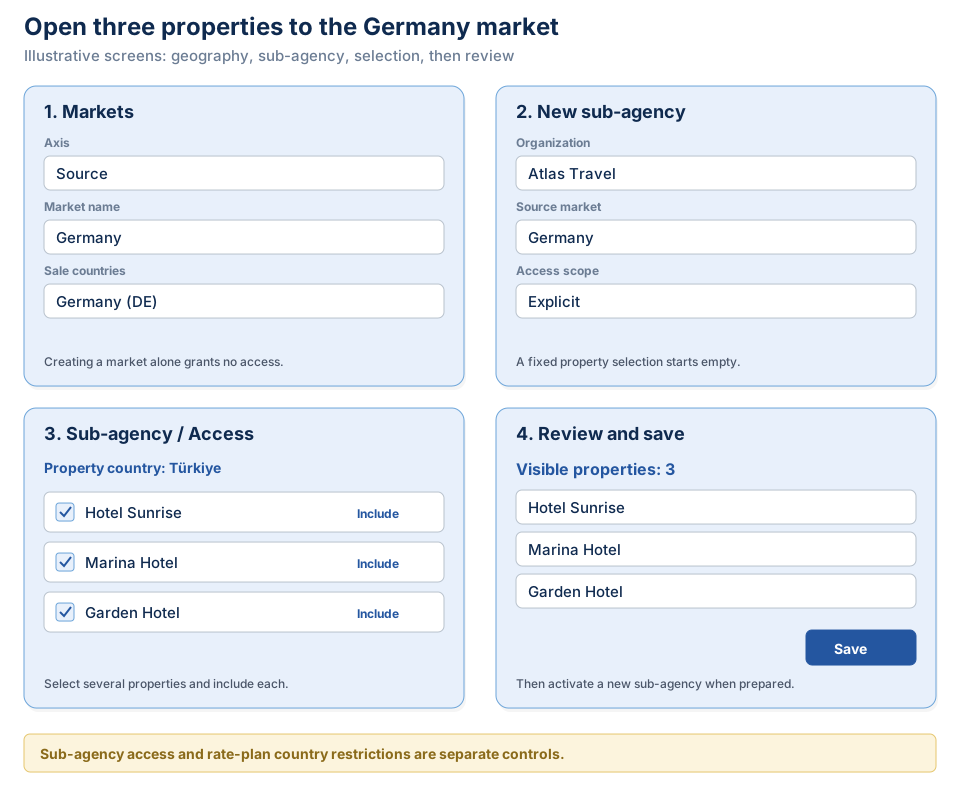
Choose the right control
| Setting | Example | What it determines |
|---|---|---|
| Source market | Germany | The sale country. Point of sale (POS) is distinct from the guest's nationality. |
| Sub-agency | Atlas Travel | The Organization allowed to sell your products. |
| Access | Three selected properties | The properties opened to this sub-agency. |
| Destination | Bodrum | A geographic property group, instead of a fixed selection. |
| Rate plan source markets | Germany | The sale countries in which this particular rate is valid. |
| Property channels | A selected sales connection | Connection and mapping to an external sales system. Creating a market does not connect a channel. |
Open three properties to a sub-agency
-
1. Create the source market
Open Distribution > Markets > New market. Choose the Source axis, select Germany and save the market as Germany. Reuse it if it already exists. If you copy a country-group template, check every country left in your copy.
-
2. Choose the sub-agency scope
Open Distribution > Sales Network > New sub-agency. Select the Atlas Travel Organization and the Germany source market. Set Access scope to Explicit. The saved sub-agency starts as a draft.
Leaving the source market empty does not restrict the sub-agency to Germany. Select Germany for this example.
For an existing sub-agency, check its current scope first. Including three properties under All catalog does not close the rest. The Access tab edits property selections; it does not change the scope mode selected when the sub-agency was created.
-
3. Include several properties
Open the sub-agency's Access tab. Under Selected properties, choose the country where the properties are located. Search for and select Hotel Sunrise, Marina Hotel and Garden Hotel in turn. Set each selection to Include.
The country picker here describes property location. For Bodrum properties sold from Germany, choose Türkiye as the property country. To open just one property, make one selection.
-
4. Check the preview and save
Check that the visible-property preview contains all three properties. Use its search box to find each one. The preview reflects unsaved selections; Save applies the change. If the preview reports an error, do not treat its previous list as the result of your latest selection.
After saving, reopen Access and check that the selections remain. Activate a new sub-agency once its access and commercial terms are prepared. Catalog access alone does not establish that prices and inventory are available.
Open all properties in Bodrum together
For a geographic group, create a Destination market containing Bodrum on the Markets page. Create the sub-agency with Market-curated access and activate this market under Activated destination markets on its Access tab.
This opens the eligible properties under Bodrum together. Eligible properties added to that destination later can also enter the scope. Use Explicit for a fixed selection. Exclude removes a property from the geographic scope; Include adds one outside it. Review the preview and save.
Apply a separate “Germany only” rate restriction
Granting one sub-agency access does not revoke another sub-agency's access. A property may still be sold through a different sub-agency or an unrestricted rate plan. Creating a market or changing a markup does not close those sales.
If a particular rate must only apply to Germany sales, open Properties > the property > Rate plans > edit the plan > Source markets, select Germany and save. To restrict an entire property, inspect its other plans offered for sale as well. For several properties, this screen edits each property and plan separately.
- Selecting no markets removes the source-market restriction; it does not close the plan.
- Selecting several markets permits the countries in any of those markets.
- When the sale country is supplied, a country outside the allowed markets does not receive that rate. When the country is omitted, the offer can be returned with its country restriction disclosed; the selling system must check that condition.
- Expanding a supplier contract's market changes its commercial scope. The access preview does not certify the agreement or an external channel's behavior.
Check the actual selling journey: search with Germany as the sale country, then confirm that a country outside the market does not receive the restricted rate. Separately assess connections that omit the sale country or cannot carry the country restriction.
Ask the AI Operator
The Adrasis AI Operator finds records, previews changes and applies them after your approval. Example requests:
- “Open the Access screen for the Atlas Travel sub-agency.”
- “Show the properties open to Atlas Travel.”
- “Include Hotel Sunrise, Marina Hotel and Garden Hotel in Atlas Travel's explicit selection. Keep the other saved selections.”
- “Show the source markets on Hotel Sunrise's Summer rate plan.”
- “Restrict the Summer rate plan to the Germany source market. Prepare the change for my approval.”
An explanation request does not apply a change. When asking to open properties to a market, specify whether you mean a sub-agency's access or the validity of particular rates. External channel connections use the property's Channels tab; creating a binding alone does not prove that prices reached the channel.